Your iPhone has no built-in speedometer app, and Apple Maps only shows the posted speed limit — not how fast you’re actually going. To see live speed on iOS you have three real options: a navigation app with a speedometer overlay (Google Maps or Waze), a web speedometer in Safari, or a dedicated GPS speedometer app like TripRank. Here’s how each one works, how accurate an iPhone speedometer really is, and which option fits how you drive.
Does iPhone have a built-in speedometer?
No. iOS doesn’t ship a speedometer app, and Apple Maps doesn’t display your current speed. What it can show is the posted speed limit while you’re navigating. Turn it on under Settings › Apps › Maps › Driving › Speed Limit (or tap Driving in Maps and toggle it there). Two catches: it only appears during turn-by-turn navigation, and speed-limit data isn’t available everywhere.
The same applies on CarPlay. Apple Maps on the car screen shows the limit, not your speed. If you want a live number, you need a third-party app on your iPhone — which brings us to the four ways that actually work.
4 ways to see your speed on iPhone
1. Google Maps or Waze speedometer
Google Maps has a speedometer toggle for iPhone: open the app, tap your profile picture, then Settings › Navigation › Speedometer. It shows your speed in the corner of the map while you’re driving a route. Waze shows your speed by default whenever the app is open and you’re moving, and it can warn you when you’re over the limit.
Good enough for a quick check on a trip you’re already navigating. The downside is that both are navigation apps first: the readout is small, it disappears the moment you leave the app, and neither keeps a record of your drive.
2. A web speedometer in Safari
Safari can read your iPhone’s GPS through the standard Geolocation API, so any browser-based speedometer site will show your speed after you allow location access. Nothing to install, which makes it handy for a rental car or a one-off test.
The limits are the browser’s, not the GPS’s: the readout stops as soon as Safari goes to the background or the screen locks, there’s no trip history, and the page has no access to the sensor fusion or background modes a native app gets. Treat it as a stopgap.
3. A dedicated GPS speedometer app
A native iPhone speedometer app is the option that behaves like an actual instrument. TripRank’s GPS speedometer, for example, gives you a large live speed dial the moment you start a drive, keeps the screen awake while you’re recording, and switches between mph and km/h from Profile › Settings › Units. Average and top speed sit right under the dial, and every drive is saved as a trip you can scroll back through later.
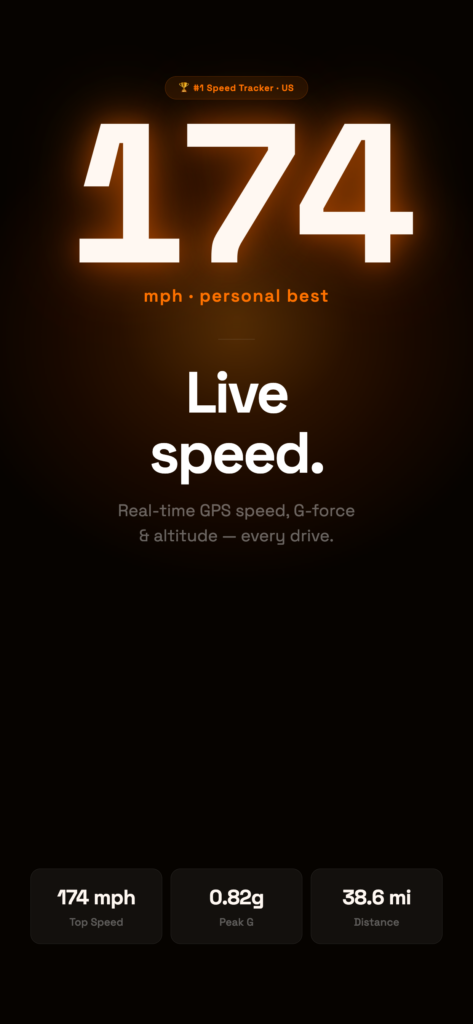
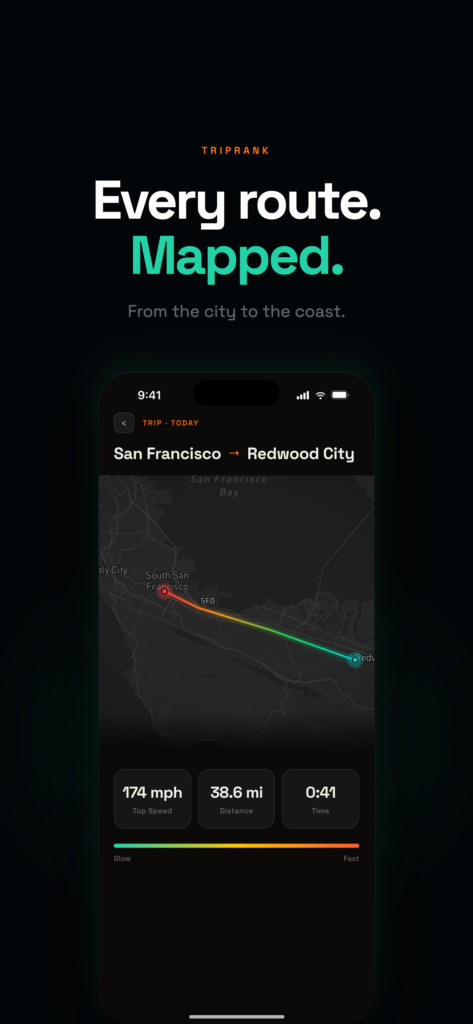
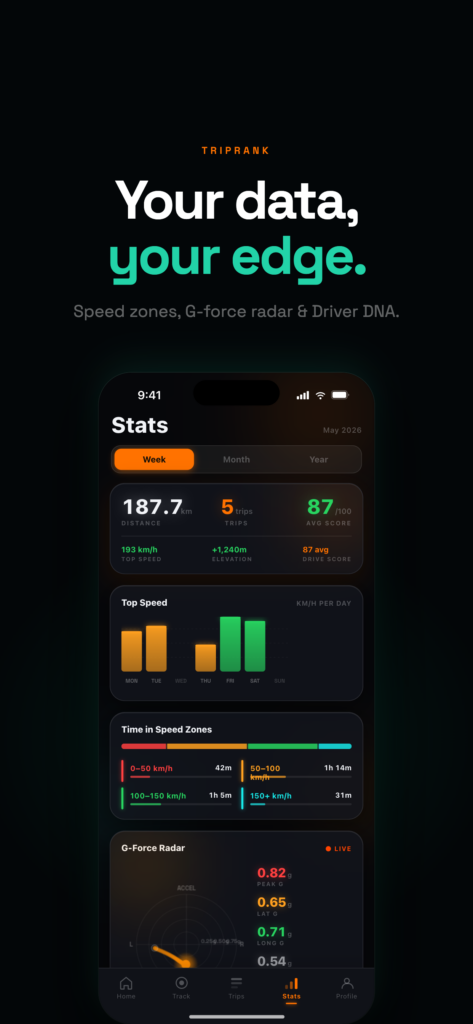
Because it’s a native app with background location enabled, TripRank keeps recording when you lock the phone or switch to music or maps — set Location to Always when it asks, or recording pauses in the background. Your current speed also shows up where you’d actually glance at it: in a Live Activity on the Lock Screen and in the Dynamic Island, so you don’t need to keep the app in front. Pair an Apple Watch and the same speed and top-speed numbers appear on your wrist, next to your heart rate.
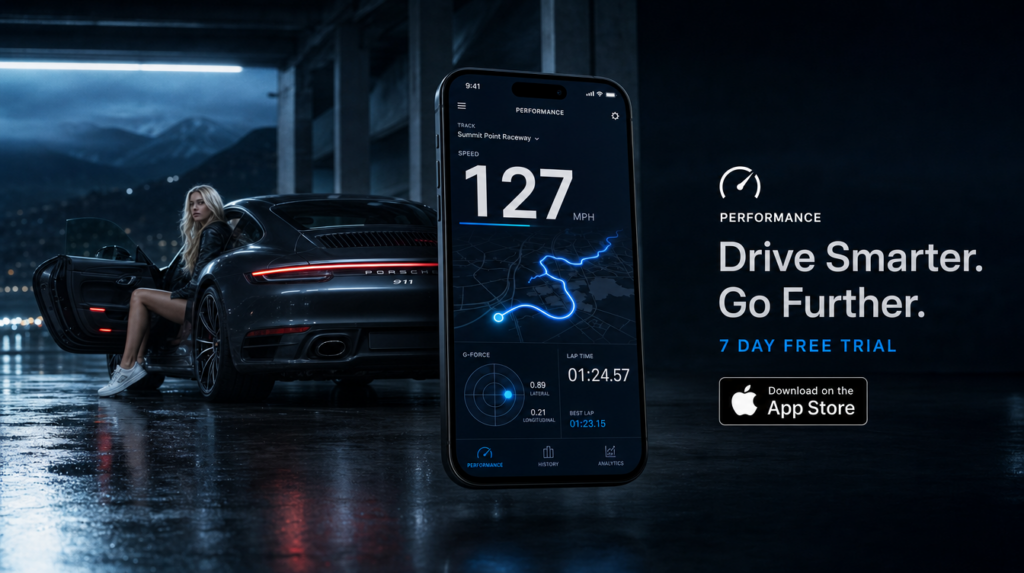
Beyond the readout, you get what a nav overlay can’t offer: a full route trace of each drive, sprint timers (0–100 km/h, 0–200 km/h and quarter mile), and stats that build up across trips.
4. On the car screen with CarPlay
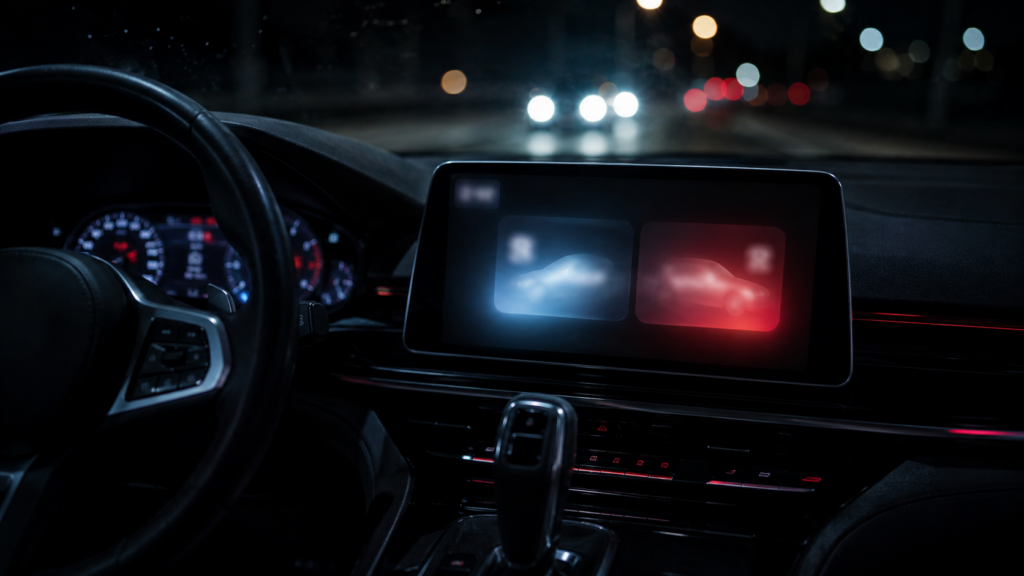
If your car has CarPlay, you can move the readout off the phone entirely. TripRank’s CarPlay dashboard shows your current speed and top speed on the car’s display and updates every second, so the phone can stay in the mount and the number lives where your eyes already are. You can also let TripRank start a trip automatically when CarPlay connects (it’s opt-in, in the app’s CarPlay settings). More on that in our CarPlay speedometer guide.
iPhone speedometer options compared
| Option | Live speed without navigating | Works with screen locked | Trip history | mph & km/h | Watch / CarPlay |
|---|---|---|---|---|---|
| Apple Maps | No (speed limit only) | — | No | — | Limit only |
| Google Maps / Waze | Waze yes, Google Maps in navigation | No | No | Yes | CarPlay app; no Watch speed |
| Safari web speedometer | Yes | No | No | Usually | No |
| TripRank (GPS speedometer app) | Yes | Yes (Location: Always) | Yes | Yes | Watch + CarPlay |
How accurate is an iPhone speedometer?
Very, in the open. Modern iPhones don’t just compare two positions to get speed — the GPS receiver also measures the Doppler shift of the satellite signals, which gives a direct velocity reading that’s typically within about 1 mph (1–2 km/h) under a clear sky. TripRank reads that Doppler speed from iOS whenever the accuracy estimate is good, falls back to distance-over-time when it isn’t, and smooths the result once per second so the dial doesn’t jitter.
Your car’s speedometer, by comparison, is allowed to read high but never low, so most read a few percent above your true speed — that’s why the dash often shows 2–3 mph more than GPS on the highway. Where GPS struggles is under bridges, in tunnels and between tall buildings, where the signal reflects and the number can lag or briefly jump. If you want the full mechanics, we break down how a GPS speedometer actually calculates your speed.

How to set up TripRank as your iPhone speedometer
- Install TripRank from the App Store (iOS 17 or later) and open it.
- Allow location access — choose Always so speed keeps recording with the screen off.
- Pick your units under Profile › Settings › Units: mph or km/h.
- Start a trip from the home screen. The live dial, average and top speed appear immediately.
- Glance, don’t stare — lock the phone and check the Live Activity, or read the number off your Apple Watch or CarPlay.
FAQ
Is there a free speedometer app for iPhone?
Yes. TripRank is free to download and the free tier tracks unlimited drives with the live speedometer, route capture, and your 10 most recent trips. Pro adds unlimited history, full stats and charts, and more, with a 7-day free trial shown in the app. Details in Is TripRank free?
Does an iPhone speedometer work with the screen locked?
A native app can. TripRank keeps recording in the background when Location is set to Always, and shows your current speed in the Lock Screen Live Activity and Dynamic Island. Browser-based speedometers stop when Safari is backgrounded.
Does it work without cell signal?
GPS positioning doesn’t need a data connection, so your speed reading keeps working with no signal. Only map tiles need data to load.
Can Apple Watch show my speed?
Yes. With TripRank running on your iPhone, the Watch app shows live speed, top speed and heart rate during the drive, and you can start or stop the trip from your wrist.
Bottom line
iOS gives you a speed limit, not a speedometer. Google Maps and Waze cover a quick check mid-navigation, Safari works in a pinch, but if you want a readout that behaves like an instrument — big dial, mph or km/h, runs with the screen locked, on your wrist and on the car screen — use a dedicated GPS speedometer app. Download TripRank for iPhone and start your next drive with a speed you can trust.
Read next
- How a GPS speedometer actually calculates your speed
- CarPlay speedometer: live speed on your car’s screen
- Is TripRank free? Free vs Pro, explained